> ## Documentation Index
> Fetch the complete documentation index at: https://unstructured-53-kapa-ai.mintlify.site/llms.txt
> Use this file to discover all available pages before exploring further.
# OneDrive Cloud Storage
> This page contains the information to ingest your data from OneDrive.
## Prerequisites
* Microsoft OneDrive Account
* Client ID and Client Credential with Azure AD
* Tenant ID for Azure AD
* Principle Name (usually Azure AD email)
* Path to the OneDrive folder to ingest from
For more information, please refer to [OneDrive API documentation](https://docs.microsoft.com/en-us/onedrive/developer/rest-api/).
## Step-by-Step Guide
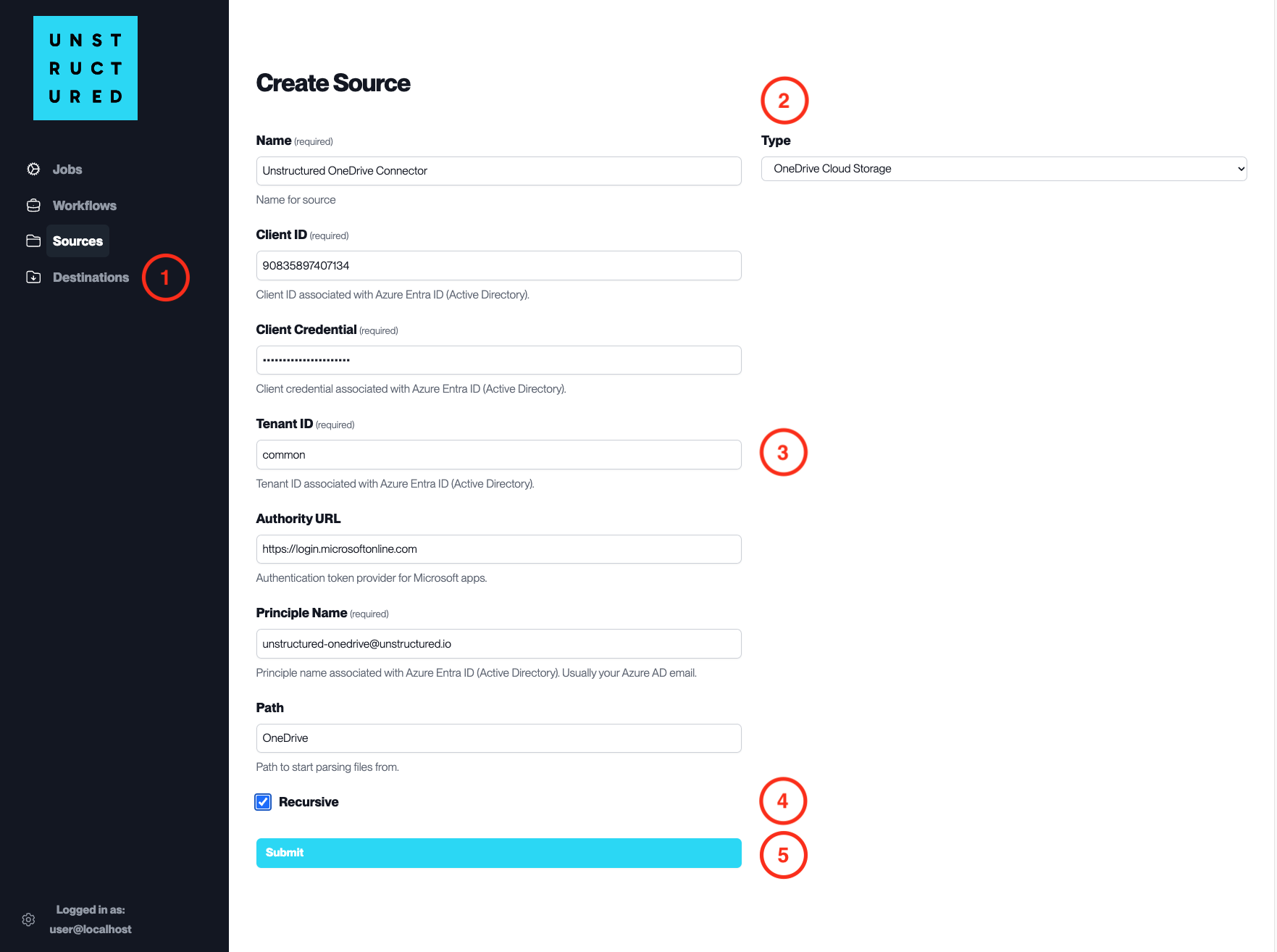
1. **Access the Create Source Page**. Navigate to the “Sources” section on the left sidebar and click the “New Source” button.
2. **Select Source Type**. Select **OneDrive Cloud Storage** from the `Type` dropdown menu.
3. **Configure Source Details to connect to OneDrive**
* `Name` (*required*): Enter a unique name for the OneDrive source connector.
* `Client ID` (*required*): Input the Client ID associated with Azure AD.
* `Client Credential` (*required*): Enter the Client Credential associated with the Client ID.
* `Tenant ID` (*required*): Specify the Tenant ID associated with Azure AD.
* `Authority URL`: Provide the URL for the authentication token provider for Microsoft apps.
* `Principle Name` (*required*): Input the Principle Name associated with Azure AD, usually your Azure AD email.
* `Path`: Specify the path within OneDrive from which to start parsing files.
4. **Additional Settings**
* Check `Recursive` if you want the platform to recursively ingest files from sub-folders within the specified OneDrive path.
5. **Submit**. After filling in the necessary information, click ‘Submit’ to create the Source Connector. The newly completed OneDrive connector will be listed on the Sources dashboard.