

Prerequisites
- Elasticsearch Local Install or Cloud Service
- Index Name
- Username and Password for Elasticsearch access (if required)
- Cloud ID (if using Elastic Cloud)
- API Key and API Key ID for authentication (if required)
Step-by-Step Guide
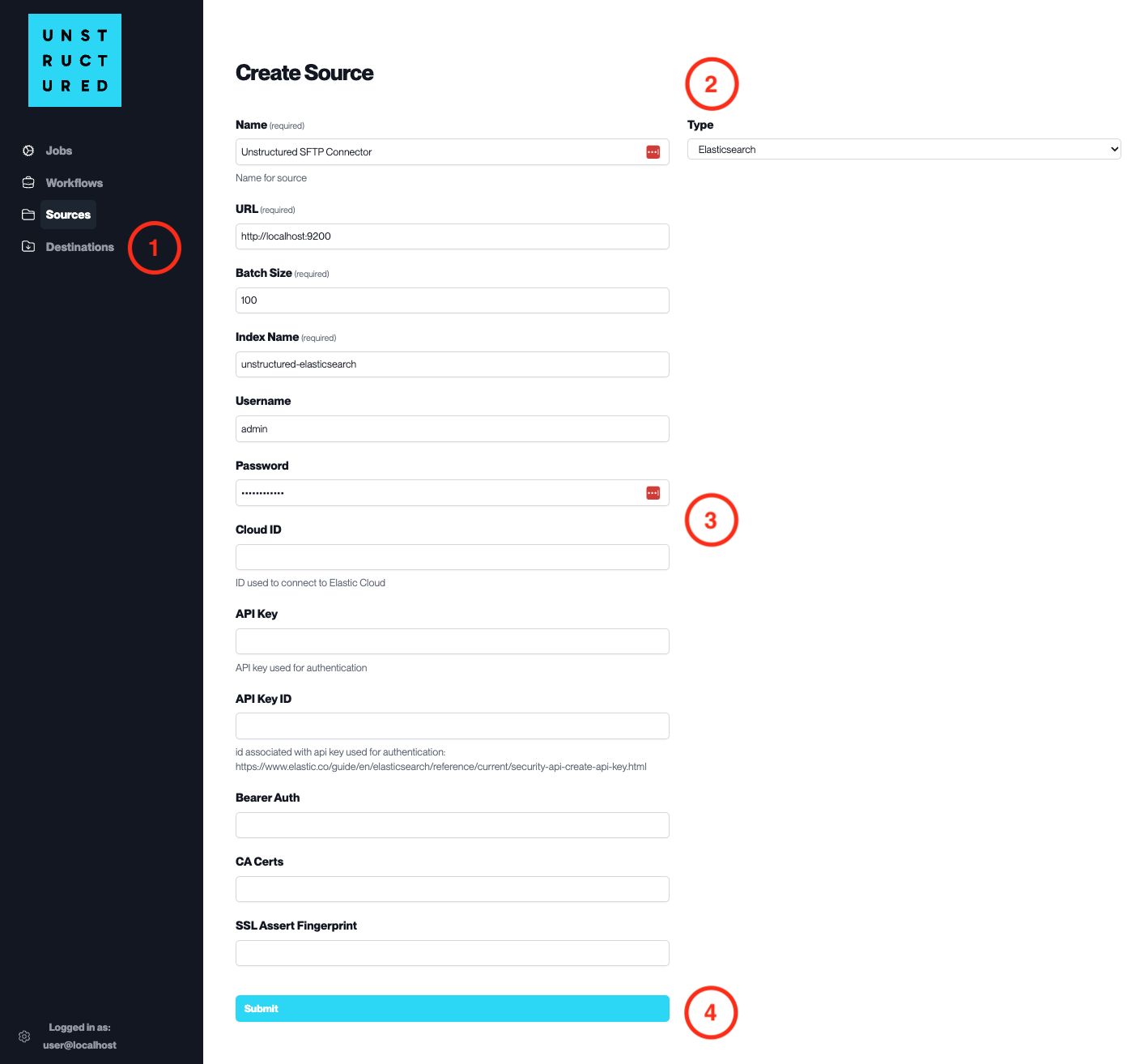
- Access the Create Source Page. Navigate to the “Sources” section on the left sidebar and click the “New Source” button.
-
Select Source Type. Select Elasticsearch from the
Typedropdown menu. - Configure Source Details to connect to Elasticsearch
-
Name(required): Enter a unique name for the Elasticsearch source connector. -
URL(required): Specify the Elasticsearch cluster URL. -
Batch Size(required): Set the number of records the platform will process in a single batch. -
Index Name(required): Provide the name of the index in the Elasticsearch cluster. -
Username: Input the username for the Elasticsearch cluster if authentication is enabled. -
Password: Enter the password associated with the username for the Elasticsearch cluster. -
Cloud ID: If using Elastic Cloud, specify the Cloud ID. -
API Key: Provide the API Key for authentication if this method is used. -
API Key ID: Enter the ID associated with the API Key if needed. -
Bearer Auth: Specify if bearer authentication is used (leave blank if not applicable). -
CA Certs: Include the CA Certificates for SSL connection if required. -
SSL Assert Fingerprint: Provide the SSL fingerprint for secure connection if necessary.
- Submit. After filling in the necessary information, click ‘Submit’ to create the Source Connector. The newly completed Elasticsearch connector will be listed on the Sources dashboard.