

Prerequisites
- Microsoft OneDrive Account
- Client ID and Client Credential with Azure AD
- Tenant ID for Azure AD
- Principle Name (usually Azure AD email)
- Path to the OneDrive folder to ingest from
Step-by-Step Guide
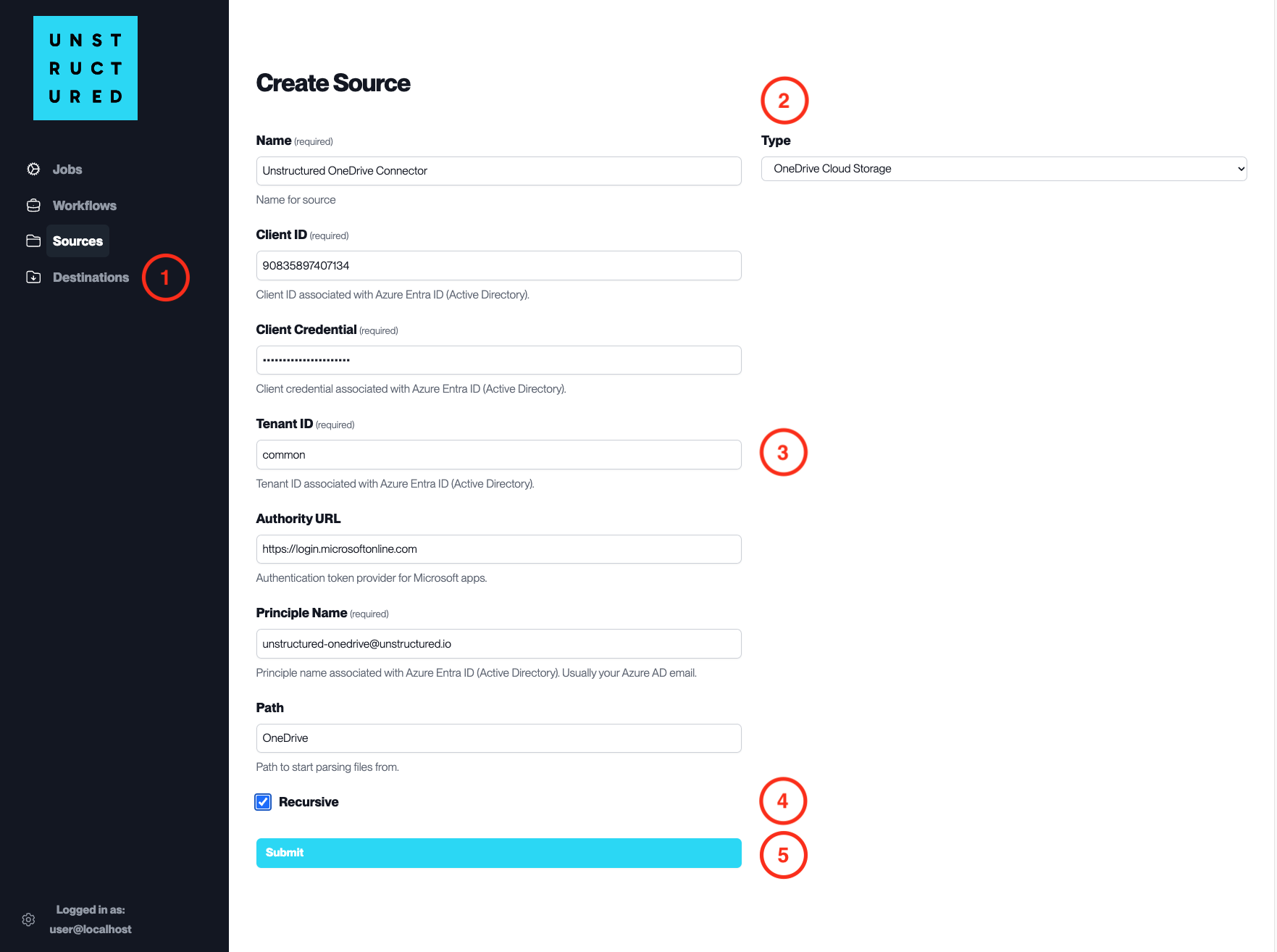
- Access the Create Source Page. Navigate to the “Sources” section on the left sidebar and click the “New Source” button.
-
Select Source Type. Select OneDrive Cloud Storage from the
Typedropdown menu. - Configure Source Details to connect to OneDrive
-
Name(required): Enter a unique name for the OneDrive source connector. -
Client ID(required): Input the Client ID associated with Azure AD. -
Client Credential(required): Enter the Client Credential associated with the Client ID. -
Tenant ID(required): Specify the Tenant ID associated with Azure AD. -
Authority URL: Provide the URL for the authentication token provider for Microsoft apps. -
Principle Name(required): Input the Principle Name associated with Azure AD, usually your Azure AD email. -
Path: Specify the path within OneDrive from which to start parsing files.
- Additional Settings
- Check
Recursiveif you want the platform to recursively ingest files from sub-folders within the specified OneDrive path.
- Submit. After filling in the necessary information, click ‘Submit’ to create the Source Connector. The newly completed OneDrive connector will be listed on the Sources dashboard.